View Maintenance: Schedules
Schedules are for recurring maintenance items also commonly known as planned maintenance.
The Schedules tab allows for both the addition of new schedules and the modification of existing schedules.
New Schedule
To add a new schedule, click on the Add button on the left action buttons.
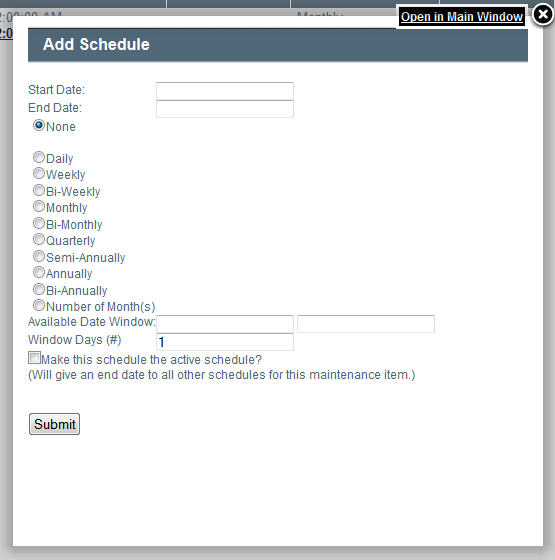
Fields
:- Start Date: The first date of the schedule. This will be the first date that the maintenance shows up on a calendar for this schedule.
- End Date: optional The last date of the schedule. This is the last date that the maintenance shows up on a calendar for this schedule. This is generally used when stopping one schedule to start a new schedule.
- Recurrence Options: There are a number of difference recurrence options, ex Daily,Monthly etc. This is how often the maintenance will show up on the calendar.
- Available Date Window: This is used for seasonal of annual duration type schedules. The day and month are the only necessary components of the setup, and will apply to any year that the schedule occurs.
- Window Days: This is the number of days that the assigned user has to complete the work required from the day it appears on the calendar.
If you are creating a new schedule to take over from existing schedules, you will want to select the "Make this schedule the active schedule? " option. This will make add an End Date to all other schedules for this Maintenance item automatically, and will make the new schedule be active from the entered start date.
Clicking submit will create the new schedule.
Existing Schedule
To edit an existing schedule, click on the hyperlink on the table for the schedule you wish to modify.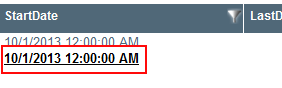
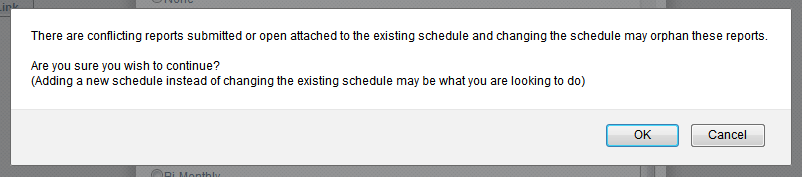
If you need to change the schedule of a maintenance item, for example from Daily to Weekly, you need to be careful that you do not orphan existing information. If the schedule has reports attached (as displayed in the following image) then you should add a new schedule instead of modifying the existing:

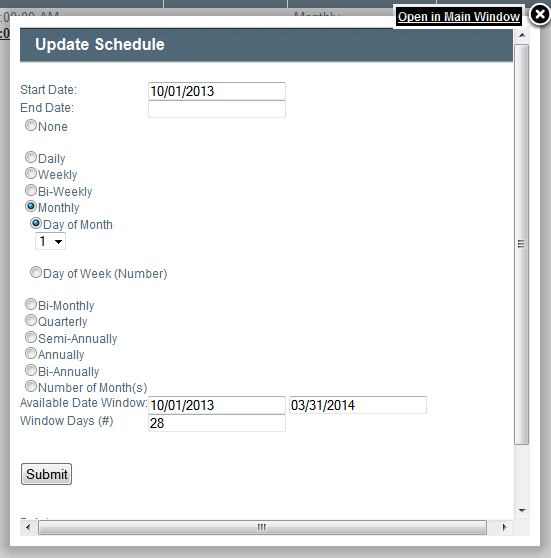
Fields
:- Start Date: The first date of the schedule. This will be the first date that the maintenance shows up on a calendar for this schedule.
- End Date: optional The last date of the schedule. This is the last date that the maintenance shows up on a calendar for this schedule. This is generally used when stopping one schedule to start a new schedule.
- Recurrence Options: There are a number of difference recurrence options, ex Daily,Monthly etc. This is how often the maintenance will show up on the calendar.
- Available Date Window: This is used for seasonal of annual duration type schedules. The day and month are the only necessary components of the setup, and will apply to any year that the schedule occurs.
- Window Days: This is the number of days that the assigned user has to complete the work required from the day it appears on the calendar.
Clicking submit will modify the schedule.
If the maintenance item has reports, you may receive the following warning: