
How To: Add a Maintenance Item
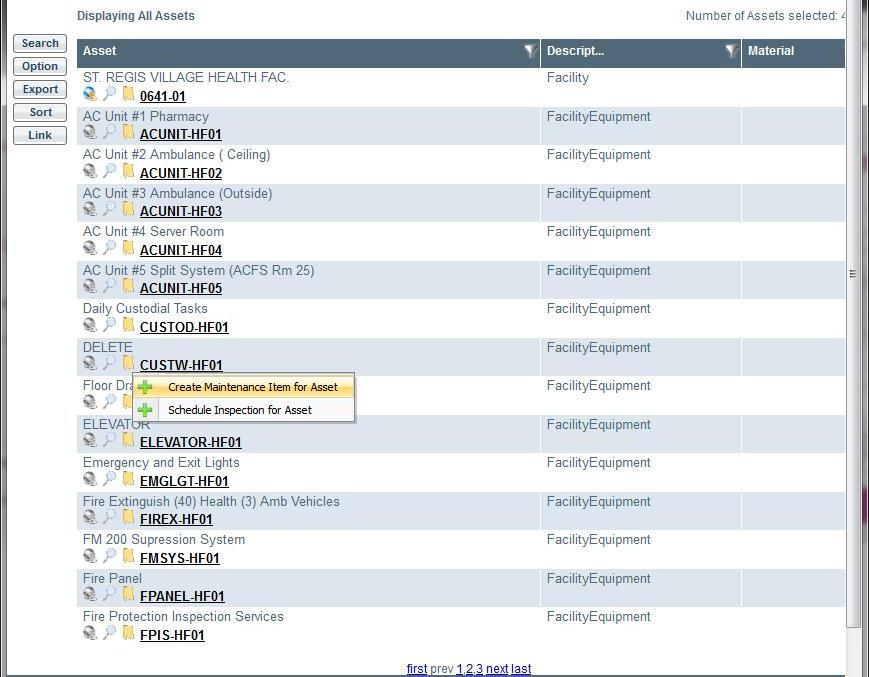
Under the "Assets" tab, an Approver can create a maintenance item by selecting the asset that requires maintenance. Once the asset has been located the supervisor selects the yellow folder icon (indicated below), and selects “Create Maintenance Item for Asset”
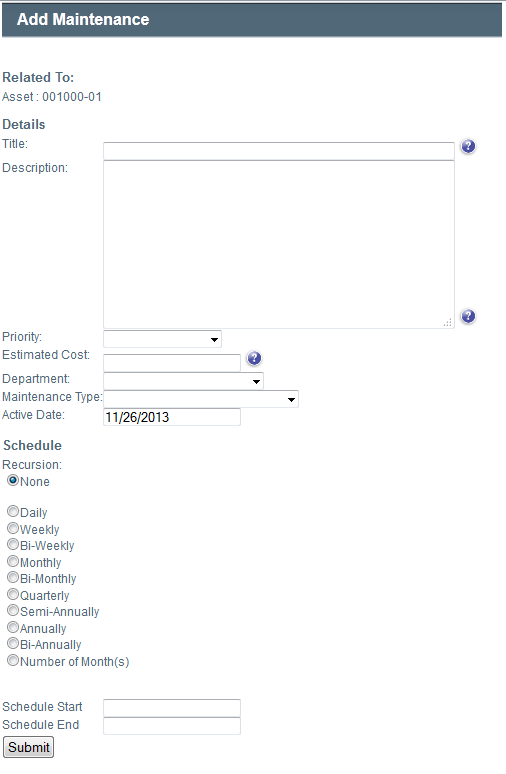
After selecting “Create Maintenance Item for Asset” the following dialog box is shown. The supervisor is to complete the following information for the maintenance item: title, description, department, priority, cost, maintenance type, and schedule information . Once all this information is complete the “Submit” button will add the maintenance item will be available on the “Work” tab to be assigned to a worker. A message will appear saying “Maintenance Item Created” for confirmation.
Fields
- Title: The name of the maintenance item. This will be how the item appears on the calendar.
- Description: The detailed description of the maintenance item. This will appear on the work order.
- Priority: The importance of this maintenance item.
- Estimated Cost: The approximate cost of the maintenance item.
- Department: The department that will need to perform the work or that the work applies to.
- Maintenance Type: The category or maintenance reason or the maintenance item.
- Active Date: The day which the maintenance becomes active in the system..
- Recursion: The frequency of the maintenance item. None is synonymous with one time.
- Scheduled Start/End: Only for one time maintenance, Optional The days to schedule this maintenance item for.
- Window Days: Only for recurring maintenance The number of days for each occurrence of the maintenance item to appear on the calendar.
- Available Date Window (Season): Only for recurring maintenance The range of time that the maintenance item will be available for each year.