How To: Complete Work Report
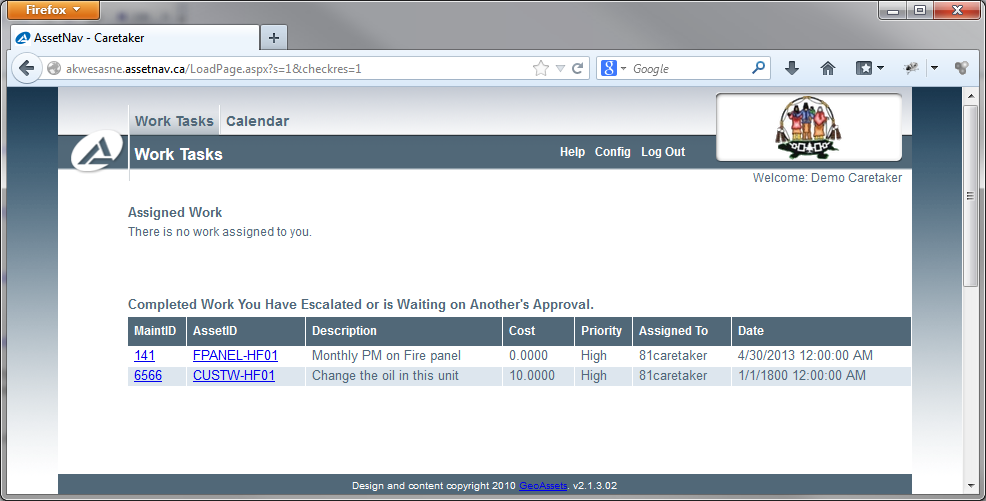
Step 1: Viewing Assigned Work
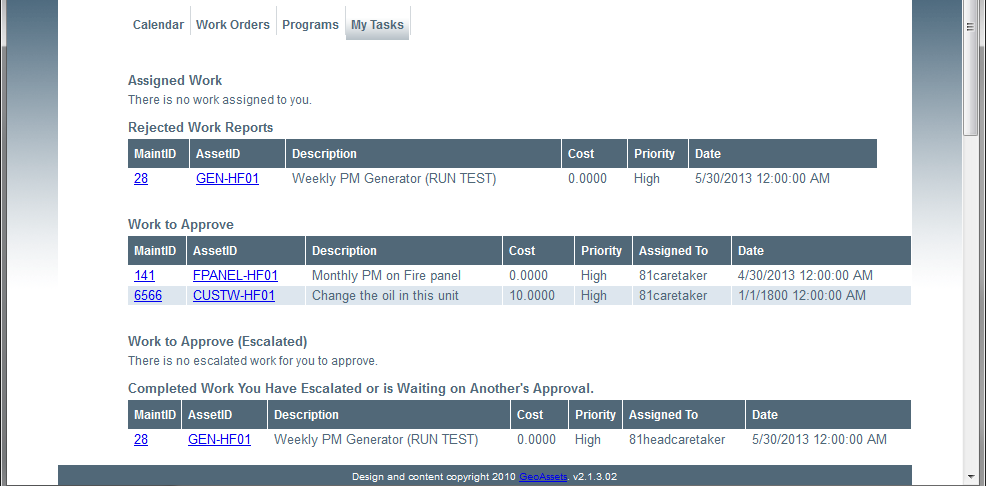
Through the Work Orders tab the work orders assigned to the currently logged in user, with a short description of what maintenance is needed, the estimated cost of the maintenance and the priority of completing the work order.
Assigned work can be viewed from the ‘work tasks’. By clicking on the ID listed under the “MaintID” the caretaker can then edit the maintenance item.
Step 2: Completing a Work Report
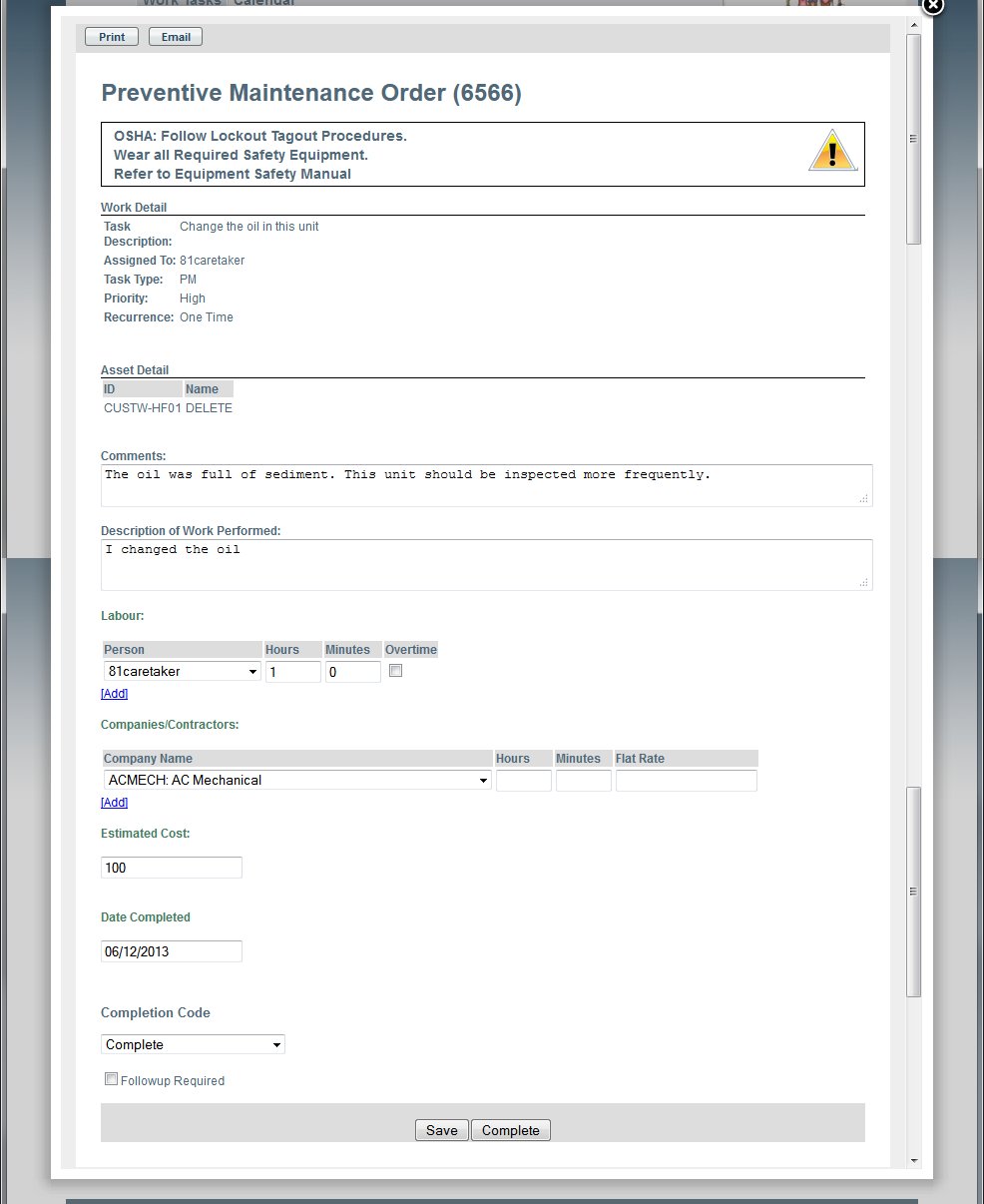
The worker can then edit the maintenance item (seen in the image below), by entering detailed information about the completed maintenance. Such as: comments, description of work performed, hours and minutes the work took to complete, company/contractor where applicable, estimated cost, date completed, indication if follow up is required and under “labour” select the person that matches your username. If the report is incomplete and needs to be completed another day, the worker can simply “save” the report and continue editing at a later date. Once all relevant information has been filled, click the complete button (highlighted below).
Step 3: Awaiting Approval
Once a work report has been completed by a worker, the report is sent to the supervisor for approval.