
How To: Assign a Maintenance Item
Step 1: Assigning a Maintenance Item
When displaying all maintenance items the maintenance table allows us to view identified maintenance that is required. The table shows when the maintenance will occur if it has been scheduled, the priority of completing the maintenance, the estimated cost and a brief description of the maintenance that is required.
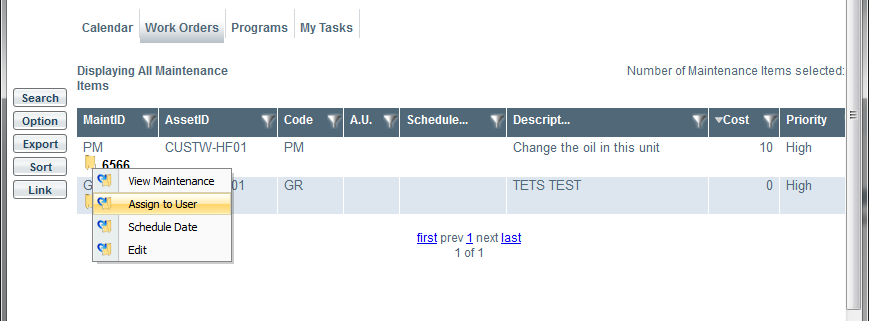
From the “Work” tab select “Work Orders”, this view allows the supervisor to see all maintenance items that need to be assigned to workers. By clicking the yellow folder (indicated below) a drop down menu is shown where the item can be “Assigned to a User” (see below).
Step 2: Assigning a Maintenance Item to a User
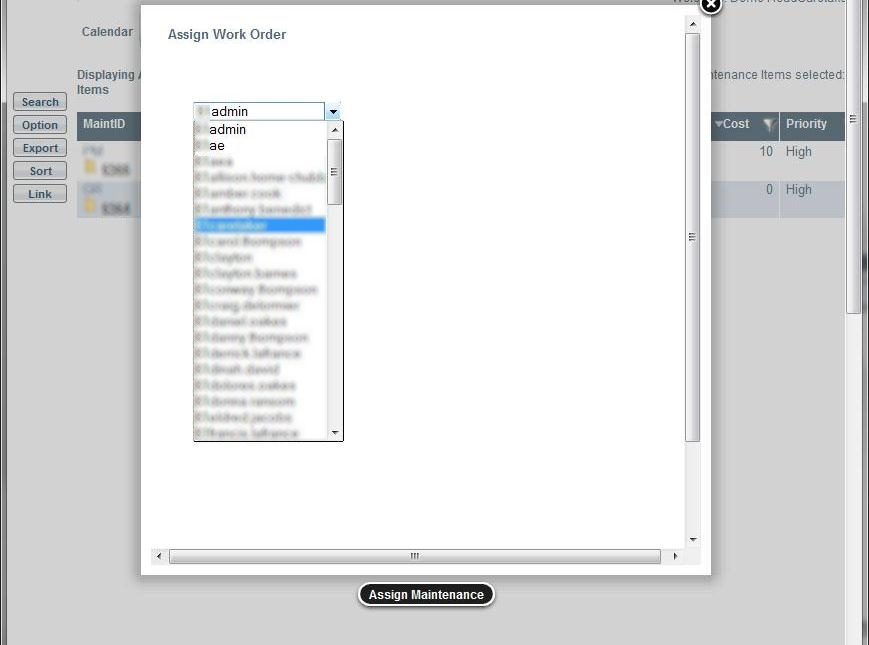
The following dialog box appears after selecting “Assign to User” on the specific maintenance item. From this drop down menu a worker can be selected for this work order. Afterwards a message will appear indicating the maintenance has been assigned.
Step 3: Viewing Assigned Work
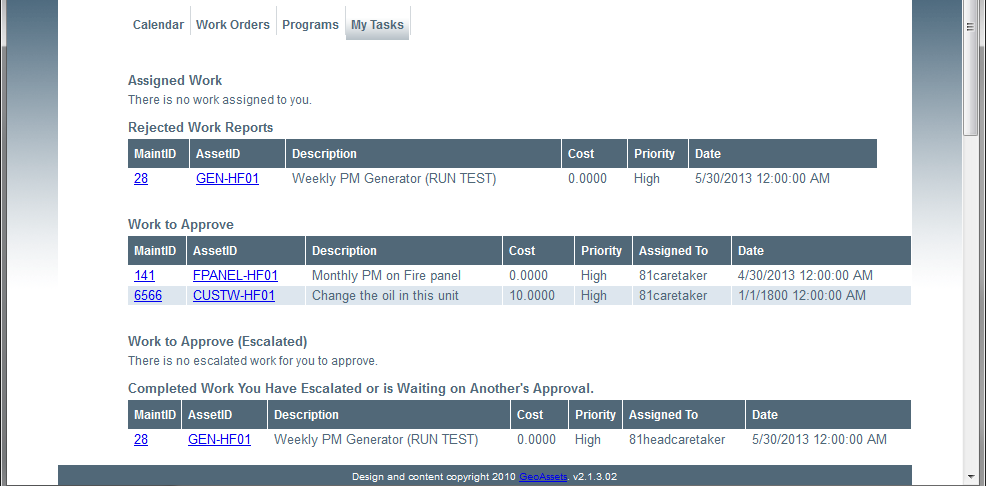
From clicking the “My Tasks” tab all assigned work, work to be approved, rejected work and completed work that has been escalated can be viewed here.