
Considered Assets
The Considered Assets View shows assets that have been flagged for consideration for capital investments. Each considered asset is presented with the asset ID (analogous to that shown in the Table Screen in Chapter 4), the Current Replacement Cost (C.R.C.), and the asset condition.
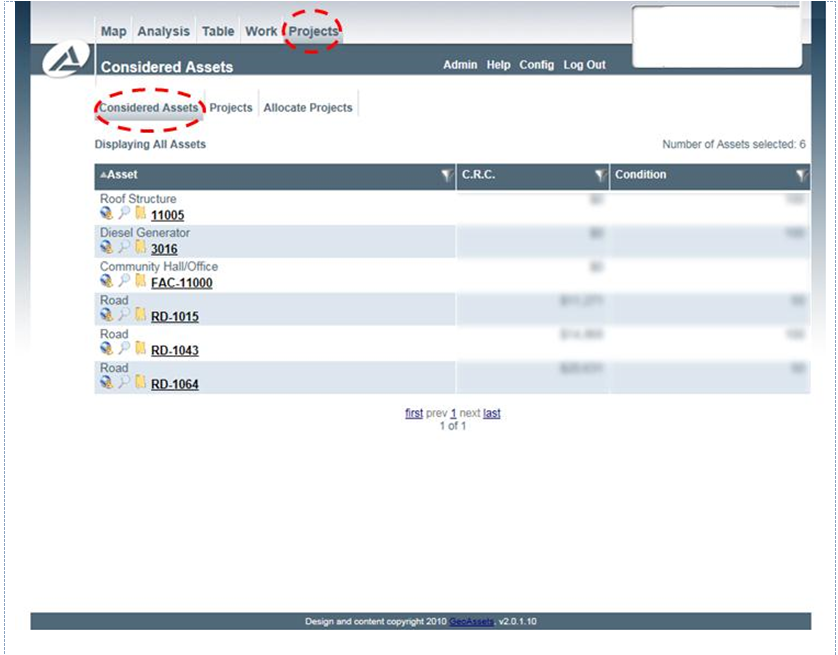
While this view does not permit the user to customize the columns shown, use advanced filtering, or use advanced sorting, a variety of features are still available to the user. The asset location (if applicable) can be shown with the globe button, and asset details can be displayed in the quick view using the magnifier button. Clicking the asset ID will bring the user to the Asset Screen directly.
From this screen, assets can be added to existing projects or projects can be made for the asset by the folder button. If a project already exists, the asset can be added to it directly by selecting ‘Add Asset to Project’ from the popup menu.
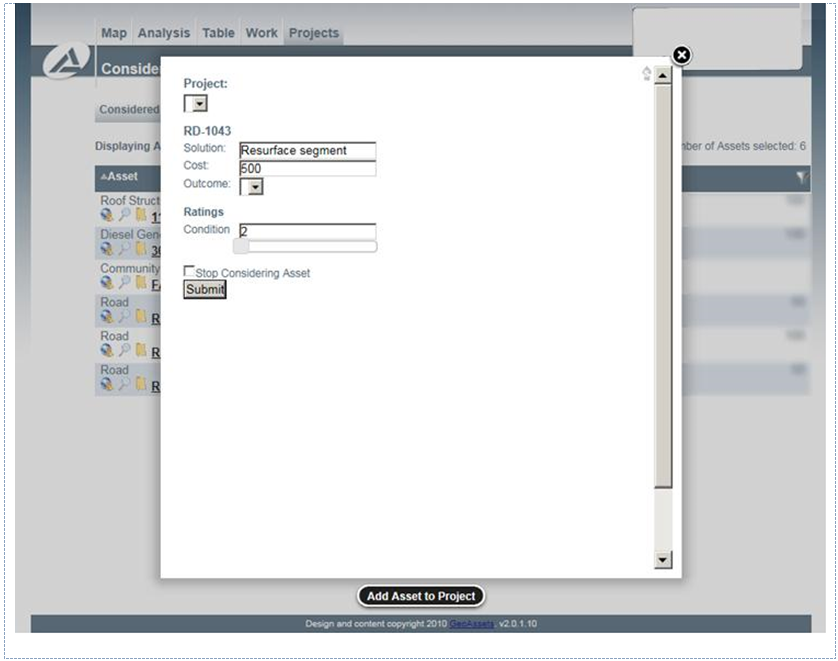
The project is selected from a dropdown list at the top of the dialog box. Under the asset ID (e.g., RD-1043) are spaces to indicate the solution for the asset (i.e. what specifically will be done to the asset under the project), the cost for the work unique to the asset, and the outcome of the work. The Condition rating (or corresponding slider below) represents the expected final condition of the asset upon completion of the project.
At any point, the user may click the button on the top right of the dialog box to cancel the addition. The ‘Submit’ button must be clicked to apply the desired changes to the considered asset.
When an asset is added to a project, or if a project is created for the asset, the user is offered the choice at the bottom of the screen of whether or not to ‘Stop Considering Asset.’ By selecting this box, the asset will be removed from the considered assets list.